
Sitecore Workflows that Work
This was intended to be a simple companion post to my Sitecore User Group Workflow presentation.
But as I typed out my talk track, I kept finding myself wanting to elaborate on everything. I started going down rabbit holes of information that were way beyond the scope of what I was looking to write. So long story short: I’m taking a cue from my MVP Mentor Carlos Rodriguez, and this is now the first in a 3 part series on workflow. Tentatively, here are the topics I aim to address:
- Part 1, for everyone: The benefits of workflow, and how to get started on v10+ or SitecoreAI
- Part 2, for admins: Automating workflow on datasources
- Part 3, for devs: Advanced scenarios using the API or GraphQL mutations
Sitecore workflows that work: Simple governance for every Sitecore implementation
Sitecore workflows are an important part of content governance, but it can be difficult to quantify their value. They often go unnoticed when present, and when absent the problems aren’t immediately obvious unless you know what to look for.
Sitecore has long recommended that customers utilize workflow, and even mentions it specifically for SitecoreAI. Unfortunately, workflow is often overlooked. My goal in these posts is to help you answer these questions:
- What are workflows?
- Why are workflows important?
- How do I know if I have workflow or not?
- Why don’t I have a workflow?
- What are some potential pitfalls with workflow?
- How do I get started with workflow?
What are workflows?
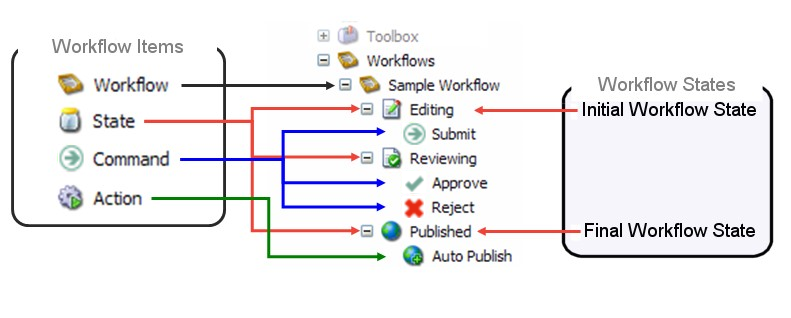
A workflow is a series of predefined states that a piece of content must pass through before it can be published. Each state represents a step in the review process (for example, Draft → Review → Approved). Commands move content between these states, and actions can trigger API calls or webhooks when changes occur.
In Sitecore, workflows, states, commands, and actions are all defined as items located under the Settings node in the Content Tree.
Why are workflows important?

In short, workflows prevent unwanted publication and ensure that all content receives proper approval before going live. Without workflow, your content is publishable from the moment it is created. There are many downsides to this:
- If you create a blog post and a colleague publishes it immediately, incomplete content may go live.
- Content that requires legal review could accidentally go live without approval.
- There is no automatic versioning; if you forget to create a new version before editing, you may lose edit history.
Workflows add a layer of protection and accountability that keeps content teams aligned and confident in what’s published.
How do I know if I have workflow or not?
If you don’t have a workflow, your content is publishable from the moment it is created. Signs that you may not have workflow enabled:
- SitecoreAI: when creating a page you’ll see workflow actions; if you instead only see a Publish button, workflow may not be enabled.
- Sitecore XP: creating a page in the Content Editor or Experience Editor shows a yellow notification if content is not publishable.
Why don’t I have a workflow?
This is complex and depends on organizational decisions. Common reasons include:
Reason 1 — It was skipped
Workflows intentionally slow the publishing process to ensure accuracy. During launches, teams sometimes skip workflow to move faster and may never add it later.
Reason 2 — You have external workflows
Content may already be reviewed through external tools (PM systems, docs, QA). Adding another approval step can feel redundant, but website-specific checks (CTAs, personalization, accessibility) still matter.
Reason 3 — Some things have workflow and others don’t
If templates or data sources aren’t consistently assigned workflows, unapproved changes can slip through.
What are some potential pitfalls with workflow?
Workflows are not a silver bullet for all content governance needs.
Less useful if everyone’s an admin

If everyone has admin rights, workflow benefits are reduced. Admins can edit items in final states and approve without review, which bypasses auto-versioning protections.
Someone needs to understand security
Workflow configuration requires role and permission management. Without an owner who understands these settings, users may be over-permissioned or blocked.
Workflows slow things down
They do by design. For time-sensitive updates you can give trusted users fast-track commands, but that risks overuse.
How do I get started with workflow?
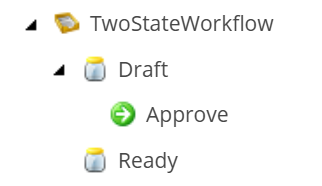
The simplest way is to ask an admin or developer to assign the Basic Workflow to page templates. Basic Workflow typically includes:
- One initial state (Draft)
- One final state (Approved)
- One command under the initial state, pointing to the final state (Approve)
This prevents accidental publishing and enables auto-versioning. It’s a good first step; later you can add more states (legal review, QA) and automation.
The workflow consists of:
- One initial state (Draft)
- One final state (Approved)
- One command under the initial state, pointing to the final state (Approve)
This eliminates the first and third problems I mentioned earlier. Your items will no longer be available for publishing until you specifically approve them. And you will automatically create a new version when editing content that’s already been approved.** It will not give you a step to send it to legal or QA or any other department, but it’s a good first step.
We’ll handle the rest in Phase 2. Winky face emoji.
Next up: Automating workflow on datasources (for admins)